What Are the Top Types of USB Interfaces?
Choosing a USB interface can feel simple until a cable fits but transfers data slowly. USB-A, USB-B, Micro-USB, and USB-C describe connector shapes; they do not guarantee the same speed or power. That distinction matters when connecting a laptop, camera, or external drive. The USB-IF’s USB Type-C Cable and Connector Specification defines the reversible USB-C design, while USB4 Version 2.0 specifies data rates up to 80 Gbps. These are standards-based capabilities, not promises that every port or cable will reach them.
USB-IF President and COO Jeff Ravencraft has emphasized a useful distinction: USB Type-C is a connector, not a guarantee of a particular data speed. Check the device specifications. USB Power Delivery 3.1 can support up to 240 watts, but only with compatible equipment and cables. A small connector alone tells you very little.
This guide compares the top types of USB interfaces by connector, compatibility, speed, and power. It also separates physical plugs from USB protocol generations, a distinction product labels often blur. The naming remains confusing. Even experienced buyers can overlook a cable’s rating, so the practical advice is simple: verify the port and cable specifications before choosing.
How USB Interfaces Are Classified by Connector Type
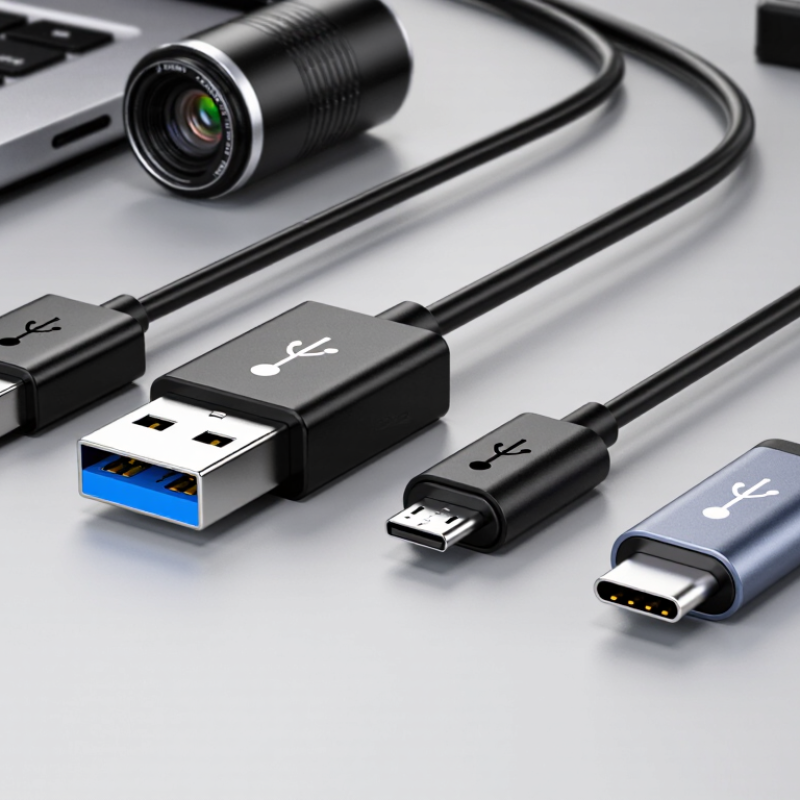
USB connector types are easiest to identify by shape and intended role. Type-A is the familiar flat, rectangular port on many host devices and chargers. Type-B connectors have a squarer profile and often appear on peripherals. The family also includes smaller Mini-B and Micro-B forms. Shape matters. A cable that fits physically does not necessarily support the same data rate or power level.
Type-C is oval and reversible, so it can be inserted either way. The USB-IF Type-C Cable and Connector Specification defines a 24-contact design, with contacts arranged to support reversible connections and multiple functions. By comparison, the USB 2.0 specification describes Micro-B with five contacts. These figures describe connector designs, not guaranteed performance. Actual charging and transfer capabilities depend on the device, cable, and supported USB specification.
In practical checks, inspect the port before choosing a cable: a narrow Micro-B opening looks different from Type-C’s symmetrical oval. USB-IF specifications separate connector design from USB data and power capabilities, a distinction that product labels can blur. There is an awkward edge: older Mini and Micro connectors may look similar in a dim workspace. A close look helps. For reliable identification, compare the port’s outline and consult the device documentation rather than guessing from cable color or thickness.
USB Type-A: The Familiar Rectangular Connector
USB Type-A is the familiar flat, rectangular connector found on many computers, chargers, keyboards, and storage devices. Its shape has stayed recognizable for decades. The plug fits in only one orientation, which can make connecting it awkward when a port is hard to see. It is not reversible. Look for the small plastic tongue inside the port and align it with the matching opening in the plug.
Type-A describes the connector shape, not a guaranteed transfer speed or power level. Different ports may support different USB generations, and a cable or device can limit performance. For example, a flash drive may fit perfectly but transfer files more slowly than expected. Check the device specifications when speed or charging capacity matters. I sometimes reach for the wrong cable, too; the connector alone does not tell the whole story.
Tips: Turn the plug gently if it does not slide in. Never force it. Inspect the port for lint or damage, and use a cable rated for the task. Keep the connector dry, and unplug it by holding the plug rather than pulling the cord.
USB Type-B: Connectors for Printers and Other Peripherals
USB Type-B is the squarish connector often found on printers, scanners, and some powered hubs. Its beveled upper corners help distinguish it from the flatter Type-A plug on many host computers. In a typical printer setup, the Type-B end connects to the device, while the other end connects to the computer. It is a practical, sturdy shape. Yet cable ends are easy to confuse when they are tucked behind a desk.
Speed depends on the connector generation, not just its shape. The USB Implementers Forum’s USB 2.0 specification sets a maximum signaling rate of 480 megabits per second; its USB 3.2 specification lists 5 gigabits per second for the first-generation SuperSpeed mode. Standard-B connectors for SuperSpeed devices have extra contacts, so they look taller than older USB 2.0 Type-B connectors. Those figures are interface limits, not promises of real file-transfer speed. A printer may be limited by its own electronics, driver, or print job. Check the port carefully. I still find connector names less intuitive than their physical shapes, and that can make replacement-cable shopping frustrating. Verify both ends and the device’s manual before buying.
USB Type-B: Theoretical Maximum Signaling Rates
USB Type-B connectors are commonly found on printers and other peripherals. The connector’s capabilities depend on its USB generation.
USB 1.1 Type-B supports up to 12 Mbps, USB 2.0 Type-B up to 480 Mbps, and the SuperSpeed USB 3.0 Type-B variant up to 5 Gbps. These are theoretical signaling rates; actual data transfer speeds are usually lower.
Mini-USB and Micro-USB: Compact Connector Types
Mini-USB and Micro-USB were designed for smaller devices, but they are not the same connector. Mini-USB, especially the Mini-B type, has a broader, taller plug. It appeared on older cameras, portable music players, and other compact electronics. Micro-USB has a thinner profile and became common on many phones and small accessories. Look closely at the port opening: the difference is visible, even when both cables seem similarly narrow.
They are not interchangeable. Each plug fits its matching socket in one orientation, so forcing a cable can damage the connector. A practical check is to compare the plug with the device’s port before connecting it. Micro-USB ports can loosen after repeated use, particularly when a cable is pulled sideways while charging. Mini-USB connectors also wear, though the feel and fit vary by device.
The connector shape does not tell you everything about performance. Many Mini-USB and Micro-USB devices use USB 2.0, but charging speed and data capability depend on the device and cable. That distinction is easy to overlook. A familiar-looking plug is not a specification. These connectors remain useful when maintaining older equipment, but their small openings can collect lint, and cleaning them roughly may cause damage. It is worth checking the device manual rather than guessing from the cable alone.
USB Type-C: The Reversible, Multi-Purpose Connector
USB Type-C: The Reversible, Multi-Purpose Connector
USB Type-C is easy to recognize by its small, rounded shape. The plug works either way up, so connecting a cable in a dim room is less fiddly. Small detail. It matters. The same connector can carry power, data, and video, depending on the equipment and cable. However, a Type-C port does not guarantee fast transfers or display output. Two devices may share the same shape but support different features. That distinction is easy to miss when choosing a replacement cable.
Tips: Check the device specifications before buying a cable. Look for its supported data rate, charging capacity, and video features. If the details are unclear, avoid assuming that a higher price means broader compatibility.
For everyday use, Type-C can simplify a desk: one compatible cable may connect a laptop to power and a monitor. In practice, the cable and both devices must support that setup. Charging speed also depends on the charger, device, and cable working together. A cable that fits may still charge slowly. I sometimes reach for the nearest one and forget this. Checking the markings or product specifications takes a moment, but it can prevent that mismatch.
What Are the Top Types of USB Interfaces? - USB Type-C: The Reversible, Multi-Purpose Connector
| Feature |
USB Type-C Details |
What It Means in Practice |
| Connector design |
A compact, oval-shaped 24-pin connector |
Designed for a slim profile and a range of device types. |
| Plug orientation |
Reversible; the plug can be inserted in either orientation |
There is no need to align the plug to a specific side before inserting it. |
| Data transfer |
Depends on the USB standard supported by the device, cable, and port; supported rates range from USB 2.0 at 480 Mb/s to USB4 Version 2.0 at up to 80 Gb/s |
The Type-C shape alone does not determine data speed. Check the specifications of all connected components. |
| Power delivery |
USB Power Delivery can support up to 240 W with USB PD 3.1 Extended Power Range equipment |
Actual charging power depends on the charger, device, cable, and supported power profile. |
| Video output |
May carry video using supported alternate modes, such as DisplayPort Alternate Mode |
Video output is not guaranteed on every Type-C port or cable; compatible devices and accessories are required. |
| Common uses |
Charging, data transfer, and—where supported—audio or video connections |
One connector type can serve multiple purposes, but supported functions vary by device and cable. |
| Compatibility note |
The connector shape is separate from the USB data, charging, and video capabilities |
Look for the product’s stated USB version, power rating, and supported video features rather than relying on the connector shape alone. |
 008613968780263

 CONTACT NUMBER
 CONTACT